Recent changes in the Google Chrome web browser application with the m60 update, has caused some reported issues by Wacom customers on both Windows and Mac. Some customers have reported the pen will not select some menus or the application will act as if the pen is not clicking in the window. Other customers have also reported that the application will lag when moving the cursor in the window, or moving the window itself.
On Mac OS, The Google Chromium team has identified the issue and the fix was released on the m61 update. To resolve this issue, please update your Google Chrome browser and apps to the latest version. If you continue to see any issues after the update, please contact Wacom support.
On Windows, below are some suggestions to help optimize the experience in this application until the update is released.
- Open Chrome and select the three dots menu icon at top right of the application, select “Settings.”
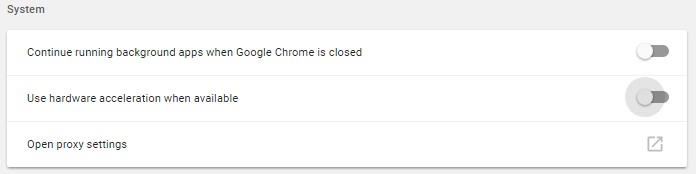
- Scroll to the bottom and select “Advanced.” Continue scrolling to the bottom again and locate the “System” section. Turn off the section for “Use hardware acceleration when available.”
- With Chrome still open, but minimized, open the Wacom Tablet Properties from the computer’s programs.
- At the top of Wacom Tablet Properties, locate the “Application” section and click the “+” icon.
- Select Chrome under the currently open applications section and click the OK button. Chrome will now appear under the application section of Wacom Tablet Properties.

- With Chrome selected, select the tablet Pen from the tool section and click on the “Mapping” tab below.
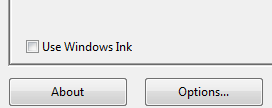
- Under the Mapping section, un-check the option for “Use Windows Ink.”