Microsoft Windows updates (KB4093112 & KB4089848) have made large changes in the settings for Windows Ink. These changes affect all Pen and Touch devices, not just Wacom Tablets. Users have reported issues with these updates causing their pen not to act as expected in the application they are using. Some examples include, scrolling instead of drawing in Photoshop and not releasing a selection with the pen in Outlook or a web browser like Firefox and Chrome.
This issue has been fixed with the release of the Windows 10 April 2019 Update. To download and install this update, go to Settings > Update & Security > Windows Update and select Check online for updates from Microsoft Update.
Previous Solution Below:
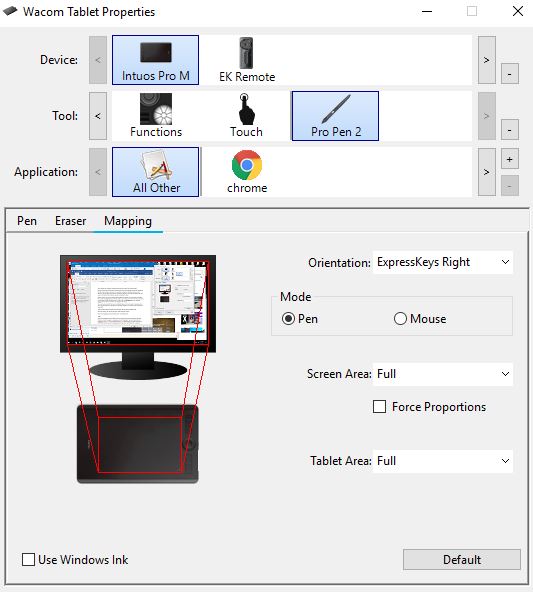
The current work around for this issue is to disable Windows Ink on the computer. A simple way to do this is using the check box for Windows Ink in the Wacom Settings. To turn Windows Ink off, follow the steps below.
- With your Wacom device connected to the computer, open the Wacom Desktop Center.
- Select Pen Settings, this will open the Wacom Tablet Properties window.
- Click on the mapping tab and uncheck the box for “Use Windows Ink”
*Note: Some applications require Windows Ink to be enabled to use pressure sensitivity like Adobe Photoshop. To add this program in separately, under the “Application” section of Wacom Tablet Properties, click the “+” Icon and add Photoshop if it is not added already. Then again select the pen from the tool section and click the mapping tab. Here make sure “Use Windows Ink” is selected.
*Note: An another solution can be found on the Microsoft forum here.