On May 10th, 2019 Microsoft started releasing Windows 10 Update 1903. This new update changes how the cursor is displayed for Pen Input devices. After the update, when Pen is used, the cursor is changed to a small white dot as shown below.
This issue has been fixed with the KB4517211 update to Windows 10, released on September 26th, 2019. To resolve this issue, please run your windows updates and make sure all updates including the KB4517211 update install.

Previous workaround:
This new dot can be hard for Intuos and Intuos Pro users to see on a computer screen. Windows currently does not offer an option to change the cursor back to the normal mouse cursor. However, if Windows Ink is turned off, the cursor will go back to the previous behavior. Wacom has reported this issue to Microsoft, however, we also suggest any user seeing this issue to report the problem using the Feedback Hub app within Windows. Instructions for turning off windows Ink and submitting feedback can be found below.
Note: Turning off Windows Ink will disable pen pressure in Photoshop and turn off pen features for other Windows Ink reliant programs. We would suggest setting up an application’s specific settings for these programs so that Windows ink is turned on for them but not for others. To learn how to set up applications specific settings see here
How to turn off Windows Ink:
- Open the Wacom Tablet Properties inside the Wacom Tablet folder in your Windows Start Menu or from System Preferences in your Apple Menu.
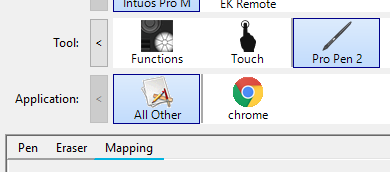
- Select the Pen in the tool section
- Select the Mapping tab under this tool.
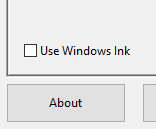
- Uncheck the check box for Windows Ink. This will turn Windows Ink off for the application selected in the Application section. In the example above All other is selected, this change will affect all applications other than Chrome, which will have its own settings.