Windows
Mac
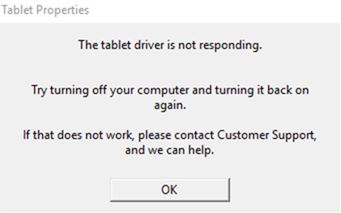
This message indicates that the driver is installed, but the driver did not respond when communicating to the operating system.
To resolve the issue, please restart your computer. If you receive the same error message, uninstall and reinstall the driver with the current version. Steps to uninstall and reinstall the driver can be found here:
- How do I uninstall and reinstall the Wacom driver on Windows for a Pen Tablet, Pen Display, or Pen Computer?
- How do I uninstall and reinstall the Wacom driver on Mac OS for a Pen Tablet, Pen Display, or Pen Computer?
Mac OS
This message also appears after the driver tries to synchronize, resulting in failure.
On Mac OS 13.* (Ventura) or above, make sure the driver is allowed to run in the background:
Before uninstalling and reinstalling the driver, ensure the necessary permissions are set:
- Go to System Settings > General > Login Items.
- Under "Open at login," click "+" and add Wacom Center.
- Confirm that Wacom and Wacom Technology Corp are listed and toggled on under "Allow in the background."
Once permissions are set, restart the computer to apply the changes.
Windows
- Make sure to run all Windows updates before following these steps to make sure the system is fully up to date.
- Uninstall the tablet driver and restart the computer. How do I uninstall and reinstall the Wacom driver on Windows for a Pen Tablet, Pen Display, or Pen Computer?
After the restart, create a new Admin user on the computer, then restart again. Log in under the new user, install the driver, and test the tablet and driver’s functionality. If the issue is resolved with this new account, please migrate your data to this account and use it exclusively.
If none of the above works, setting the recovery options of the Wacom service usually helps in case the driver doesn't start up when Windows boots:
- Press Windows Key + R on your keyboard
- Type services.msc and press OK
- Find the Wacom Professional Service on the list (type W to find it faster)
- Right-click and then select Properties
- Open the Recovery tab
- Set all 3 failure dropdowns to “Restart service"
- Set the option “Restart service after” to 0 Minutes
- Click on OK to save the changes
- Restart the computer and test to see if the error message is still there
If the steps above did not resolve the issue, please contact Wacom Support using the contact button below.