Invisible window blocks access to desktop icons

About half the time when I start up computer, I can't click on about half the icons on my desktop. At first I thought that my file containing those icons was corrupt, so I rebuilt it. But that didn't help. I could immediately reboot the computer and the icons would work again, but why did I have to do that. And then one day I noticed that if I unplugged my wacom tablet and plug in back in, that the icons would become accessible again. And then I discovered that I didn't even have to unplug the tablet. All I had to do was close the Wacom Control Center. It appears that sometime this software leaves an invisible window over the left half of the desktop.
I don't believe it is the driver. It has updated at least twice since this behavior started. I can live with it, now that I know the work around. But I thought you might like to know. And perhaps it can be fixed going forware.
-

Hi Kevin Morris,
Thanks a lot for sharing this. That is really interesting. I have not seen this bug yet but would like to try to replicate it.
Could you please share a few more details about your setup including the OS version, driver version, desktop setup (multiple displays?)? Anything you may deem relevant would also be helpful. I will then check with the driver team if we are able to replicate the issue.
You may also want to check if your system - including the graphics card driver - is all up to date, just in case.
0 -

i wanna confirm the exact same bug as Morris, my dekstop icons become bugged and trapped under invisible box but when i plug off my tablet and close wacom app they work again. This started happening recently ( 2 months ago ) probably meaning that new driver update caused the bug. I even did full format on my pc and upgraded my graphics card and the bug appeared again immediately.
0 -
We never heard from Morris again so I don't know if a solution was found.
Could you also provide more details are I asked in my first comment?
0 -
I did respond with the following on October 9th. I responded to the email you sent me. Guess I should have come here.
I have a
Dell XPS 8940
Windows 11 Build 22621
BIOS 2.14 lastest
Tablet PTH-660
Device manager says it version 10.01
Not sure where else to look
Wacom Control Center says there are no new updates. But every few boots, it will show a firmware update. But if you try to update, it will always fail. I already contacted you about this and you say it was a false alert. That there were no new firmware updates planned.When you boot up the machine, the Wacom Control Center opens. With it open, I will hover my mouse cursor over the desktop icons. If they get a transparent square around them, then they are clickable. If they don't, then that means they won't respond to a mouse click. At that point, I close the Wacom Control Center (not sure if that's the correct name) and then the icons will work again.
I believe it started with the last two driver updates. Not sure if the false firmware update has anything to do with it. I tried to update the firmware a number of times before I asked about it. It would get to the point where it was about to install and then the tablet would disconnect and it would say it failed. I would then reconnect the tablet and the firmware update would disappear from the Control Center.
The tablet is connected directly to the computer.
Only the left half of the screen is affected. Any icons on the right half of the computer screen will work regardless if the ones on the left can't be clicked on.
I have a Samsung monitor. No dual setup.
I use a wireless logitech mouse (Bluetooth)
Kevin Morris
PS. I wonder if it might be a conflict between Wacom and MalwareBytes. Sometimes the Malwarebytes tray icon will load and sometimes it won't. This is actually how I found the problem. I created a desktop short cut for the times with the MB tray icon doesn't load. But then I found that I couldn't click on it. And after some exploring, I finally discovered that if I closed your app then all the icons worked again. I have the paid version of Malwarebytes.
You pushed out 2 driver updates since I wrote, but neither fixed the issue.
0 -
Hi Kevin Morris,
Thanks a lot. I could not find any email reply from you on my original post anywhere in our system. Perhaps you used a different email address from the one you use with Wacom ID?
From what you describe, it does look a lot like an invisible 3rd party program is at play here but I wouldn't know why the Wacom Driver would trigger this.
When this happens again, please click the small button on the bottom right corner of your taskbar to minimize every app and see if you still cannot click the desktop.
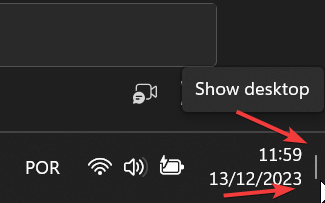
If yes, then time the issue happens. please check for all the active Apps in Task Manager (Ctrl + Shift + Esc) and close them one by one until you find which program has the invisible window.
0 -
When I start up my computer, the only application open on the Desktop is the Wacom Center. With the center open, I move my mouse around over any icons that are visible around the Wacom Center. If the icons react to the mouse movement (become highlighted as the mouse moves over them), then I mimimize the Wacom center. But if I move my mouse over the desktop icons and they don't react, (icons don't become highlighted.), then I use the X to close the Wacom Center. And when I do that, the desktop icon are immediately selectable. I can click on them and the programs linked to the icons will open. What ever was blocking the mouse movement has now been removed by closing the Wacom Center. This has happened over and over for several months now. It seems to me that the Wacom center is causing this issue. I mean, when it happens...almost every day...all you need to do is close the Wacom center and you can select the icons again.
0 -
Hi Kevin Morris,
I understand that but I cannot reproduce this issue. It cannot be just the Wacom Driver or the Wacom Center otherwise it would be easily reproduceable or we would have many more customers reporting this.
What I would ask you now is to gather some logs and maybe a video and contact our support team directly so we can take all the information to the driver team to try to understand what causes the issue and how t fix it.
Once you have gathered the logs, you can also disable the Wacom Center from launching on start-up
 0
0 -
I turned on that button so it would collect the logs. But with that turned out, it doesn't seem to cause what ever happens to block the desktop icons. I had it running for a couple days and it hasn't happened yet. Usually it happens every other time I turn on the PC.
0 -
Hi Kevin Morris,
That is strange. The driver log function doesn't have any effect on the how the driver itself works. I just saves the inputs in a temporary file that is then compiled when you press the button.
There are no extra windows triggered or anything of the sort. I don't understand how this could trigger the issue nor fix it...
I guess we will know more once you replicate the issue again and gather the logs.
0 -
I sent you the log file by replying to the email that I received from you.
0 -
Don't know if you ever got the log I sent. Never heard anything back. But it did happen when the log was running.
I do have a few new details and some thoughts.
Just now I booted up my pc. The icons were working (responding to mouse movement) and then the Wacom Center loaded and the icons no longer worked (no longer responded) until I closed the Wacom Center. As I said before, this doesn't happen all the time. But it does happen at least half the time.
It did occur to me that this does not have to be an invisible window. It could be that you have a routine that captures the mouse movements that doesn't close after if does what it needs to do. Just a thought.
0 -
Hi Kevin Morris,
I have not found any recent ticket under the same user you are using to comment here so I am assuming you sent from a different user account or email?
0 -
All of the emails I sent have been through this email. I see the email you sent me has a no reply address so maybe that i s the issue. And I don't see any way to attach the log here.
0 -
Hi Kevin Morris,
I don't think we have sent you an email. Please use the webform here:
https://support.wacom.com/hc/en-us/requests/newYou can attach the items at the bottom of the form:
 0
0 -

Hey, just FYI, I have encountered the same bug. When the wacom center is minimized, it creates an invisible box that blocks any clicks. And this seems to be wacom issue - using "sniper" mode from process explorer it points to msedgewebview2.exe, which is attached to wacomCenterUi.
0 -

I too have the same issue. When I close wacom center I am able to use the desktop. When I open the wacom center I am not able to use it. Some invisible window is blocking my clicks. To be more precise about 3/4 of the monitor is blocked by this invisible window. If I press win+D (or click the minimize all windows button in the right bottom corner) I can click the desktop icons but the moment I open any application, the invisible windows also comes back with it. I have just learned to live with it coz its a very minor issue but its there.
0 -
Hi, still haven't been able to reproduce this. If you are still experiencing this, please file a bug report with the logs here:
0 -

June 2025, and I’ve just encountered the same issue again, suddenly. Here’s what I’ve understood so far:
-
It’s really an invisible window
-
It’s related to a Windows application called “msedgewebview2”
-
“msedgewebview2” only activates when the Wacom Center is running and the Wacom tablet is connected
My driver is up to date — perhaps the latest versions have this bug, but since the posts above are from a year ago, it might be worth reinstalling an even older driver, maybe from 2023 or early 2023, to test if the issue still occurs.
For now, my workaround is simply opening the Windows Task Manager and ending the “msedgewebview2” task.
I haven’t tested an older driver yet, nor have I waited to see if “msedgewebview2” reappears after being closed, since I literally just encountered this error.
I kindly ask Wacom to look into this bug — our work relies heavily on drivers that function properly.
I’m available to provide more details if needed.0 -
-
This appears to be fixed now with the latest driver update. I haven't had the issue since I updated the driver.
1
Please sign in to leave a comment.
Comments
19 comments